

How to Use Xero Projects and Understand Its Limitations
Managing projects is hard for small businesses. Owners need to track time, costs, and profit without hard tools. Learn how to use Xero Projects to keep it simple and clear. Xero Projects is a simple tool in Xero that helps you stay in control. Using it can save time, cut mistakes, and show clear profit. This guide will show you how to use Xero Projects step by step, check its features, learn its limits, and see how it fits your business.
Unlike large project tools, Xero Projects stays simple. It does not load you with many choices, making it right for small and mid-size firms. You do not need tech skills or accounting know-how. Everything links well with your Xero accounts, keeping all data in one place.
If you want a tool to track time, costs, and profit while staying simple, Xero Projects is a good pick. It keeps projects smooth, makes client billing easy, and keeps finances clear with little extra work.
What Is Xero Projects?
Xero Projects is a project tracking add-on for Xero accounting software. It helps you track money, time, and resources used for each job or client.
Purpose
- Track Costs: It records every expense linked to a project. Each cost appears automatically in your accounts.
- Measure Profit: It compares income and costs to show real-time profit results.
- Manage Time: It helps staff record hours spent on each task or project efficiently.
- Create Invoices: You can turn billable time and costs into invoices instantly.
Benefits of Using Xero Projects
Using Xero Projects helps small businesses stay organized and improve profits.
1. Better Cost Control
- Tracking every expense is simple and quick. You can link bills, receipts, or payments to specific projects. This gives a clear picture of where money goes.
2. Real-Time Profit Insights
- View profit margins anytime with just a few clicks. Xero Projects compares total costs and income to show accurate project results.
3. Time Tracking Made Easy
- Team members can record their working hours on different tasks. Each time entry adds up for smooth billing and reporting later.
4. Faster Invoicing
- Create invoices from logged time and project costs directly. This saves effort and reduces errors when billing clients.
5. Complete Integration
- All project data connects with your Xero accounting books. You don’t need to switch between multiple systems.
How to Use Xero Projects – Step-by-Step Guide
Learning how to use Xero Projects takes just a few minutes. Follow these easy steps to get started.
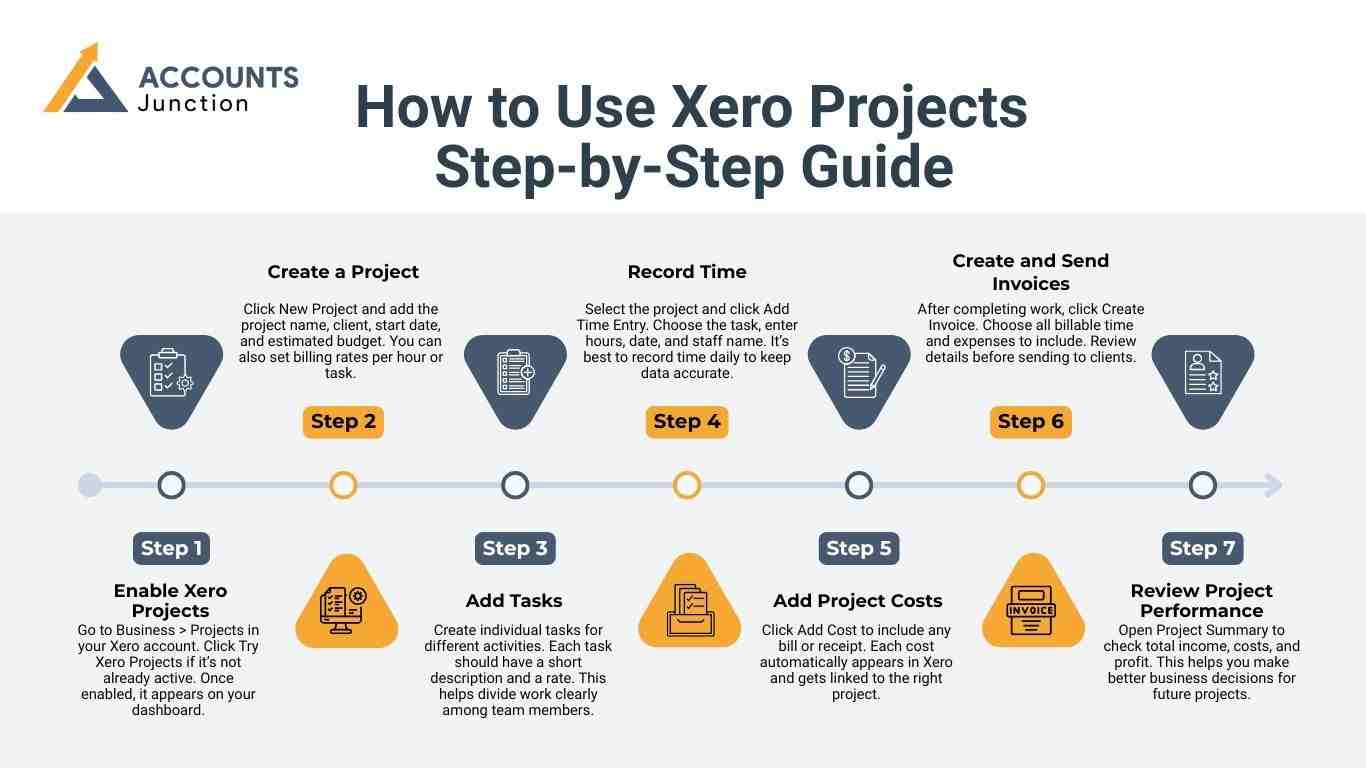
Step 1: Enable Xero Projects
- Go to Business > Projects in your Xero account. Click Try Xero Projects if it’s not already active. Once enabled, it appears on your dashboard.
Step 2: Create a Project
- Click New Project and add the project name, client, start date, and estimated budget. You can also set billing rates per hour or task.
Step 3: Add Tasks
- Create individual tasks for different activities. Each task should have a short description and a rate. This helps divide work clearly among team members.
Step 4: Record Time
- Select the project and click Add Time Entry. Choose the task, enter hours, date, and staff name. It’s best to record time daily to keep data accurate.
Step 5: Add Project Costs
- Click Add Cost to include any bill or receipt. Each cost automatically appears in Xero and gets linked to the right project.
Step 6: Create and Send Invoices
- After completing work, click Create Invoice. Choose all billable time and expenses to include. Review details before sending to clients.
Step 7: Review Project Performance
- Open Project Summary to check total income, costs, and profit. This helps you make better business decisions for future projects.
Main Features of Xero Projects
Understanding how to use Xero Projects properly ensures you can take full advantage of each feature for smoother management and faster decisions.
1. Simple Dashboard
- The dashboard shows all active projects with key figures. It displays project progress, costs, and profits in one view.
2. Task Tracking
- Each project can have multiple tasks for better clarity. Assigning tasks helps track who did what and how long it took.
3. Expense Management
- You can attach receipts, bills, and payments directly to projects. This ensures accurate tracking and clean financial records.
4. Time Tracking
- Every user can log their working hours easily. The app also allows tracking time from mobile devices.
5. Quick Invoicing
- Convert tracked hours and expenses into client invoices fast. This helps reduce waiting time for payments.
6. Mobile Access
- The Xero Projects app lets you manage work on the go. You can record time, add notes, and view reports anywhere.
7. Profit Reports
- Each project includes a profit summary showing income versus costs. You can view results in real-time without extra work.
Best Practices for Using Xero Projects
To maximize benefits, here are some tips on how to use Xero Projects effectively in your business.
1. Use Clear Project Names
- Keep names short and specific for easier search later. Avoid using the same names for multiple projects.
2. Set Project Budgets
- Always define a budget for time and cost. This helps prevent overspending and keeps profit under control.
3. Record Daily Time
- Ask staff to log hours daily. It improves accuracy and reduces missing entries at billing time.
4. Review Weekly Reports
- Check reports every week for quick insights. You can detect problems and fix them early.
5. Link Every Expense
- Ensure all costs are connected to the correct project. This avoids confusion and missing expense records.
6. Train Your Team
- Teach your team how to use Xero Projects correctly. Proper training ensures accurate data and better results.
7. Keep Notes Updated
- Use the notes feature to record client updates. Attach documents and comments to keep the project history complete.
Understanding the Limitations of Xero Projects
Like every tool, Xero Projects has some limits to know before use.
1. Limited Reports
- Reports are basic and not customizable. You may need to export data to Excel for detailed analysis.
2. No Gantt Charts
- It does not include visual timelines or Gantt charts. Complex scheduling may need external project tools.
3. Manual Time Entry
- Users must add hours manually each day. There’s no automatic tracking or timer function available.
4. Basic Budget Control
- You can set budgets only for time and money. It lacks advanced forecasting and detailed budget options.
5. Limited Integrations
- Xero Projects connects mainly within Xero. It doesn’t directly integrate with tools like Asana or Trello.
6. Extra Cost Per User
- Each user in the project module costs extra. This may increase expenses for growing teams.
7. Not Built for Big Projects
- Large organizations might find it too simple. It’s ideal for small or medium-sized businesses only.
How to Overcome Xero Projects' Limitations
There are easy ways to handle most of these limits.
1. Use Third-Party Apps
- You can connect tools like WorkflowMax or Hubstaff. They add detailed reports and automatic time tracking.
2. Export for Custom Reports
- Export data into Excel or Google Sheets. This helps create charts and advanced performance reports easily.
3. Keep Projects Small
- Break big jobs into smaller ones for easier management. Smaller projects are easier to track and analyze.
4. Update Data Regularly
- Regular updates reduce mistakes and missing entries. Make sure all staff record their time and expenses daily.
5. Train Employees Often
- Provide simple refresher training for your team. Updated skills ensure smoother use and better accuracy.
6. Monthly Reviews
- Review projects each month to check profits. Adjust prices or costs based on results for improvement.
Tips to Get the Most Out of Xero Projects
These tips explain how to use Xero Projects efficiently to track projects, time, and costs without hassle.
Tip 1: Start Small
- Begin with one or two projects to learn slowly first. Focus on understanding features before adding more projects gradually.
Tip 2: Track Costs Fast
- Add bills and receipts immediately to avoid missing records. Record expenses daily to keep reports accurate and updated.
Tip 3: Check Project Profit
- Use reports to compare the profits of each project clearly. Identify top clients to focus on your most profitable work.
Tip 4: Use Mobile App
- Install the Xero Projects app to track time anywhere easily. Update tasks on mobile to save time and effort.
Tip 5: Set Alerts
- Set budget alerts early to prevent overspending on projects. Check alerts regularly to avoid going over your budget limits.
Tip 6: Use Labels
- Tag projects clearly to find and sort them easily. Use different labels for type, client, or project status.
Tip 7: Backup Data
- Back up all project data every month to stay safe. Store copies securely to prevent loss from errors or crashes.
When Xero Projects Is the Right Fit
For small teams, freelancers, and agencies, knowing how to use Xero Projects can make project tracking simple and accurate.
Ideal Users
- Freelancers managing client-based jobs.
- Agencies tracking billable hours.
- Small teams handling multiple short-term projects.
- Consultants need simple cost tracking tools.
Best Use Cases
- Time-based billing for services.
- Tracking income and costs for clients.
- Quick reporting for project-based businesses.
When Xero Projects May Not Be Enough
Sometimes, Xero Projects might not fit large-scale business needs.
Not Suitable When
- You need detailed scheduling tools or Gantt charts.
- Projects involve large teams or complex workflows.
- Advanced forecasting or reporting is required.
- You want full automation of time tracking.
For these needs, using Xero Projects along with third-party project software works best.
Learning how to use Xero Projects helps business owners stay in control. It tracks project costs, time, and profits in a simple and clear way. For small teams, it’s a powerful tool that saves time and improves billing accuracy.
But for large or complex projects, it has some limits. Understanding these helps you plan better and use the tool wisely.
Accounts Junction is a skilled accounting and bookkeeping firm that helps small firms manage money with ease. Our team can set up Xero Projects, adjust it for your needs, and train your staff to use it well.
We offer support to track project costs, make clear reports, and link Xero with other tools. With Accounts Junction, project accounts stay smooth and fast. Our team makes sure your business gets the most from Xero.
We have certified experts who give full and simple solutions for your work. Partner with us to make your accounts simple and smart.
FAQs
1. What is Xero Projects used for?
- It tracks project income, costs, and profits in real-time.
2. How can I start using Xero Projects?
- Go to Business → Projects in Xero and enable it.
3. Can I track team hours easily?
- Yes, each user can log time per project task.
4. Does it support billing clients?
- Yes, you can create invoices directly from projects.
5. Can I see project profits instantly?
- Yes, the dashboard shows profit, costs, and budget.
6. Is Xero Projects mobile-friendly?
- Yes, you can manage projects using the mobile app.
7. Does it support Gantt charts?
- No, there are no Gantt charts or visual timelines.
8. Can I assign multiple users to a project?
- Yes, multiple staff can log hours for the same project.
9. Does it connect to other tools?
- It integrates mainly with Xero, not with many external apps.
10. How do I record project costs?
- Add bills or receipts under the project to link costs.
11. Can I create custom reports?
- No, reports are simple; use exports for customization.
12. Is it good for freelancers?
- Yes, it’s perfect for freelancers tracking client projects.
13. How often should I review reports?
- Check reports weekly or monthly for better insight.
14. Can I use Xero Projects offline?
- No, it requires an internet connection to access data.
15. Does it alert when I overspend?
- Yes, it gives alerts when budgets exceed set limits.
16. Is Xero Projects free?
- No, it’s a paid add-on charged per active user.
17. Can Accounts Junction help me with setup?
- Yes, they can set up and train your team easily.
18. Are there limits to the number of projects?
- Xero Projects can handle many projects, but performance may vary.